 eReader Relay
Quick start
Set up an account, device, inputs, reading list, and first EPUB.
This path sets up a scheduled reading list. If you only want to send the page in your browser, jump to the browser-extension guide; on an iPhone or iPad, see the iPhone and iPad app guide.
1. Sign in
Create an account or sign in to eReader Relay. From Account, you can optionally add a passkey for password-free sign-in.
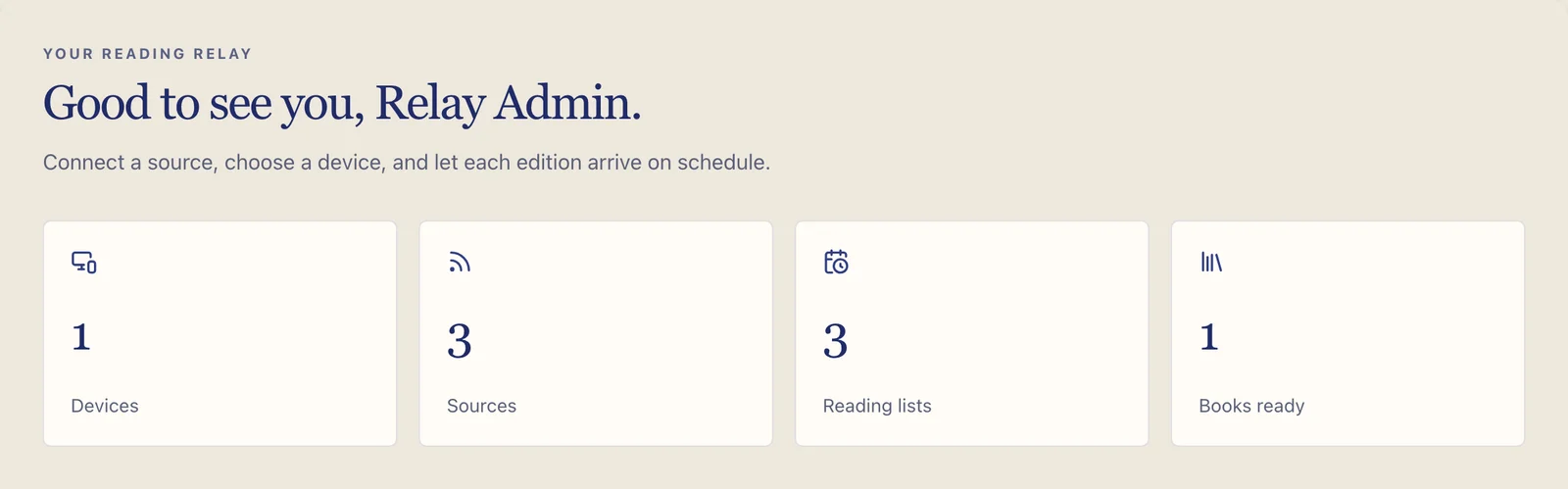
2. Add a delivery device
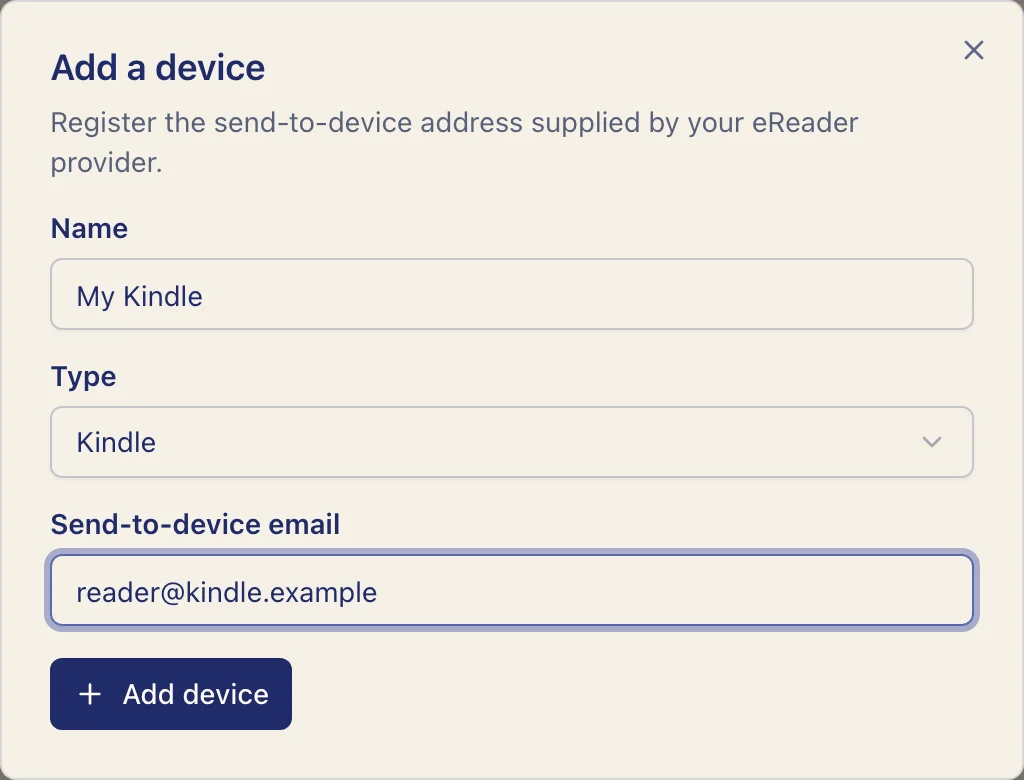
Open Devices, select Add device, and enter:
- a name you will recognize;
- the provider type; and
- the exact send-to-device email address supplied by your eReader provider.
Kindle users must also add relay@ereaderrelay.com to Amazon's approved sender list. Follow the
Kindle approved-sender guide before testing delivery.
3. Add something to read
Choose at least one:
- Add a public RSS or Atom URL under Sources.
- Create a Subscription inbox, subscribe to a newsletter with its private address, and wait for the first message to arrive.
- Install the browser extension and save a public article.
4. Create a reading list
Open Reading lists and select Create reading list. The form has three steps:
- Choose the title, cadence, local time, day when required, and time zone.
- Select a feed or observed newsletter. You can also leave this empty to create a paused list, then add content later.
- Select zero or more devices. With none selected, the EPUB stays in the library only.
An empty reading list stays paused. Add a feed, an observed newsletter, or a browser-captured article before running it.
5. Generate the first book
Open the reading list and select Run now. eReader Relay queues the work and shows a notification when the EPUB is ready. You can also wait for the displayed Next edition time.
6. Verify the result
Open EPUB library. Select the book to read its chapters in the browser, download the EPUB, or send the existing book to another registered device.
If delivery does not arrive, work through Device and delivery troubleshooting.