 eReader Relay
Browser extension
Save the current article to a reading list or send an EPUB to selected devices.
The browser extension handles one public article at a time. It supports Chrome and Firefox. Safari is not currently available.
Install
Install the extension from the
Chrome Web Store
or Firefox Add-ons, then pin it to the
toolbar so it is one click away. Store builds connect to the production service at
ereaderrelay.com. On an iPhone or iPad, use the iOS app instead.
Sign in
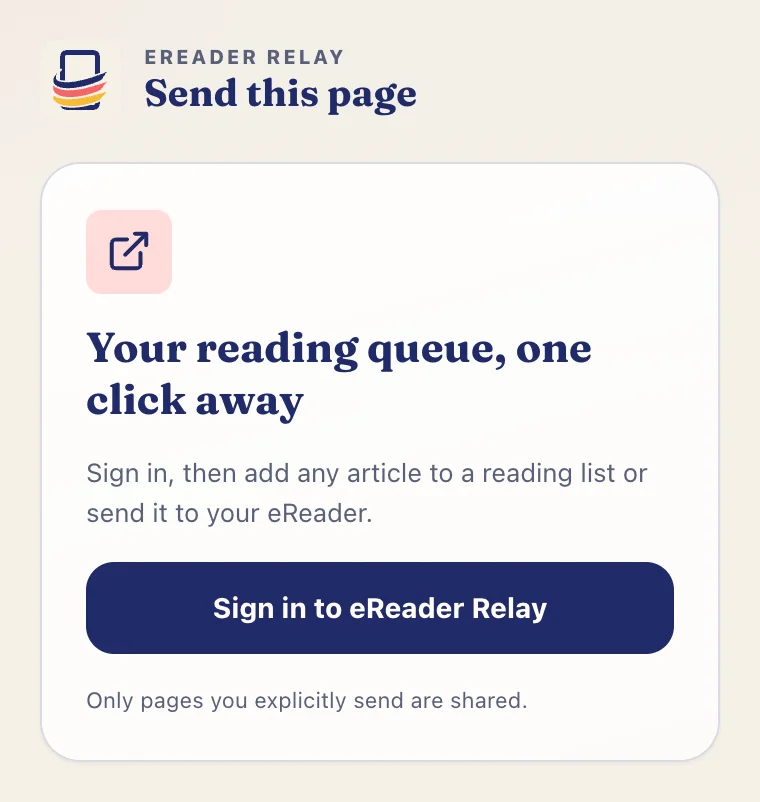
- Open the extension and select Sign in to eReader Relay.
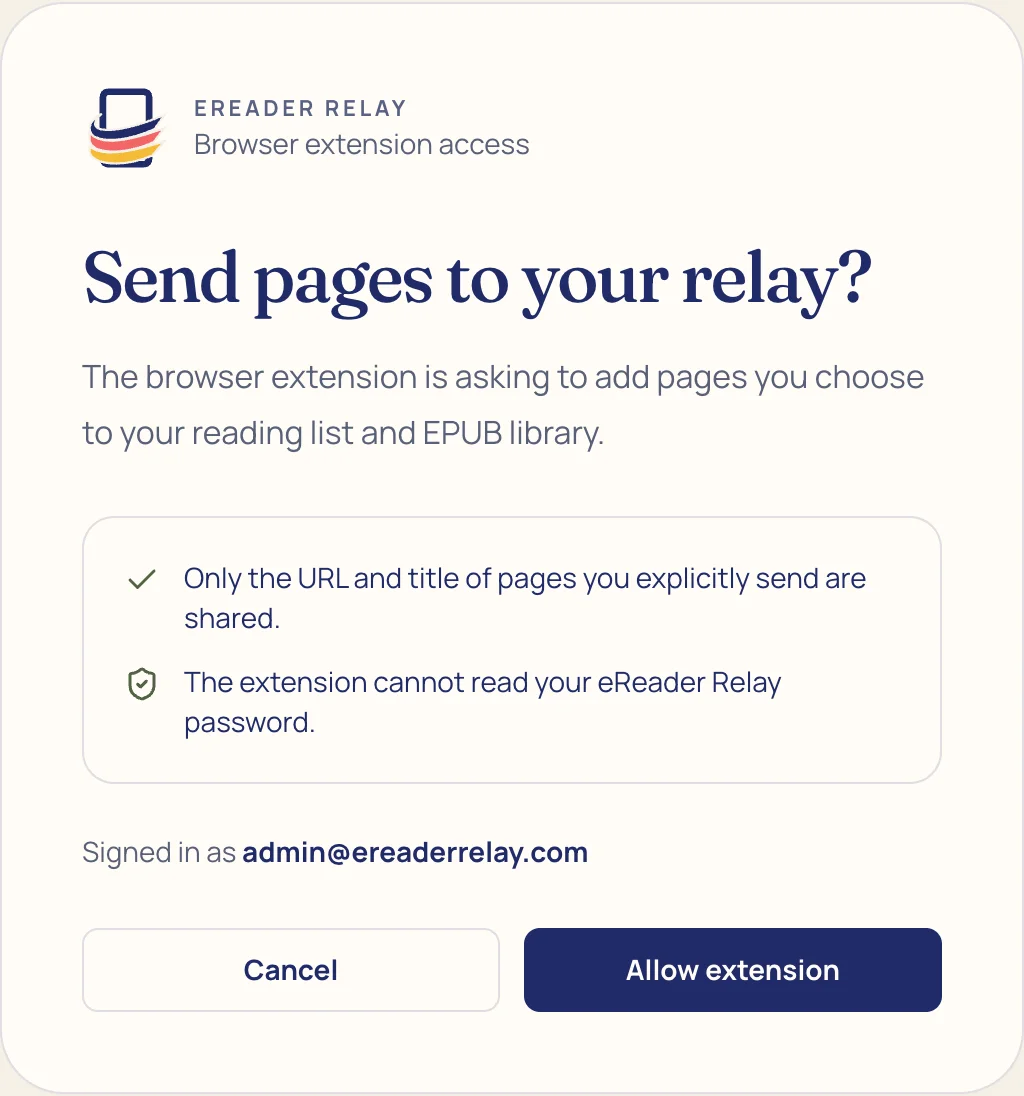
- Sign in in the separate browser window.
- Select Allow extension.
- After the approval window closes, reopen the extension if your browser also closed its popup.
The extension resumes the pending approval and should show your account name, reading lists, and devices. It never asks you to paste an account token.
Add the page to a reading list
- Open a readable public article over HTTP or HTTPS.
- Open the extension.
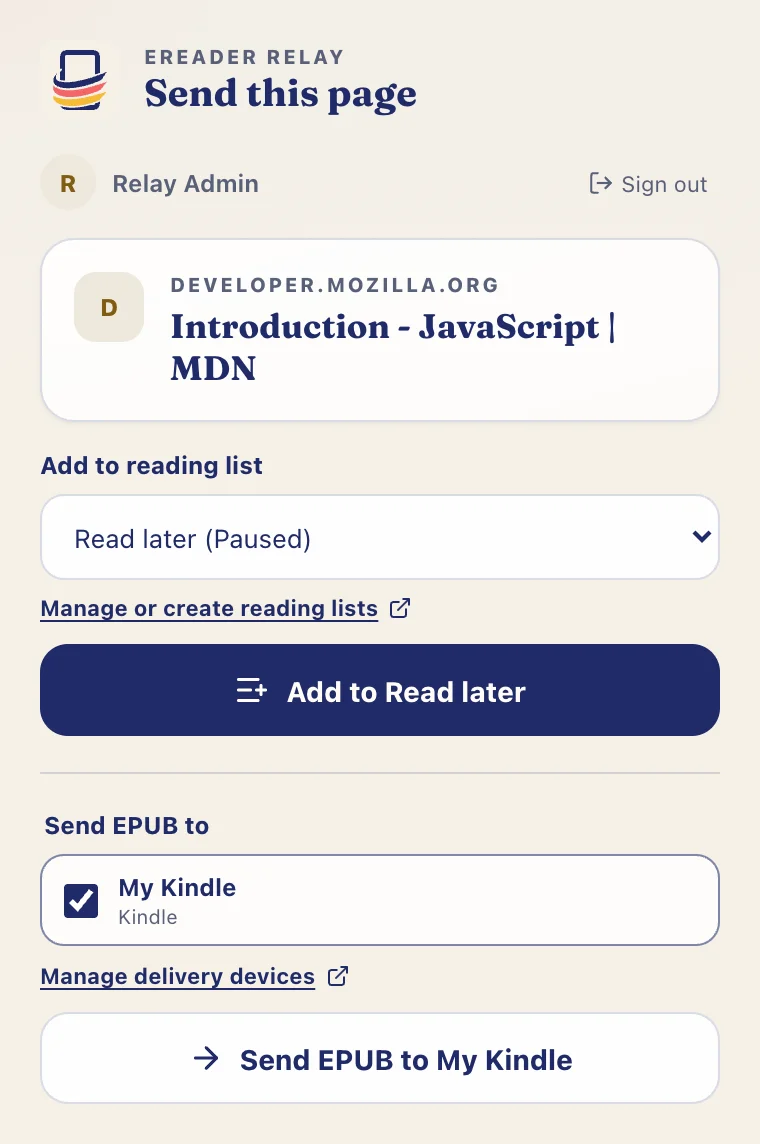
- Choose the exact reading list.
- Select Add to list name.
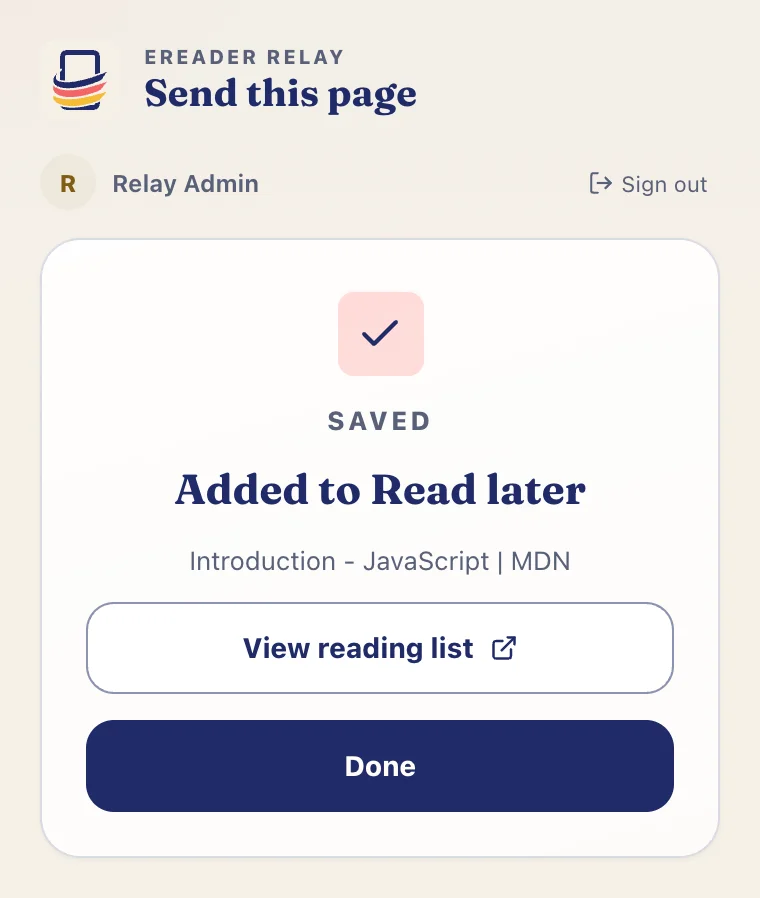
The success view names the list that received the article and links back to it. The captured article is included when that reading list next runs.
Send an EPUB now
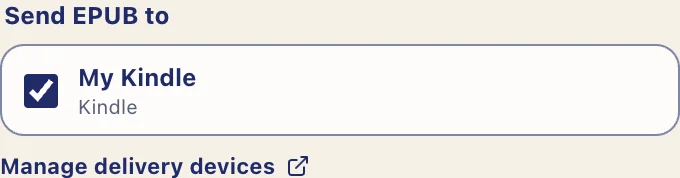
- Toggle on every device that should receive the article.
- Select Send EPUB.
- Wait for the queued confirmation.
eReader Relay builds a one-article EPUB, stores it in the library, and sends it automatically as soon as it is ready. A direct EPUB contains the article itself, without a numbered edition title or a visible table of contents.
Remembered choices
The extension remembers the last reading list and device selection in browser-local extension storage. On first use, a single available device is selected automatically. If you deliberately turn every device off, that all-off choice is preserved. Removed or inaccessible destinations are cleared the next time the extension refreshes them.
Pages the extension cannot access
The current tab must be a normal http:// or https:// page. Browser settings, extension pages,
new-tab pages, local files, login-only pages, and private content cannot be captured. X has a stricter
policy: only public X Articles are attempted.
If the account still looks signed out after approval, see Extension sign-in troubleshooting.